
We've updated the sound upload process on SoundboardGuys! Every new sound upload now needs an image. You can choose one from our image library or upload a custom image of your own.
Whether you're sharing a meme sound, a gaming voice line, or a funny sound effect, a matching image helps other users recognize what they're about to play. Here's how to add one.
1. Open the Sound Image Picker
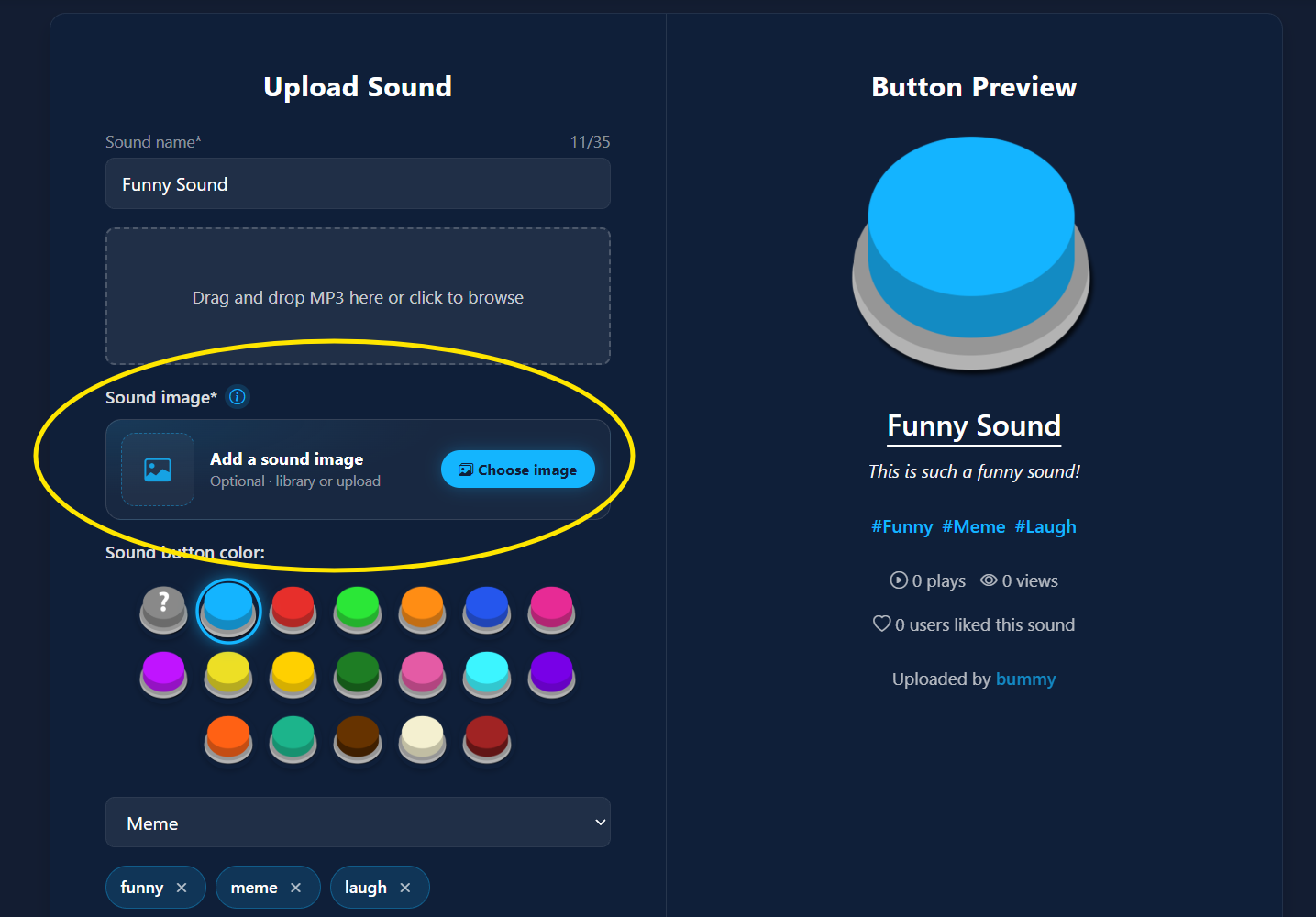
Start uploading your sound as usual by entering a sound name and adding your MP3 file. Under Sound image, click Choose image to open the image picker.
2. Browse or Search the Image Library
The Browse library tab lets you choose from images already available on SoundboardGuys. Scroll through the library or use the search bar to find an image that matches your sound.
Try searching for the character, game, show, or meme associated with your audio.

3. Select Your Library Image
Click the image you want to use. Your selection will be highlighted with a check mark, and a small preview will appear at the bottom of the picker.
Happy with your choice? Click Done to attach it to your sound.

Prefer a Custom Image? Upload Your Own
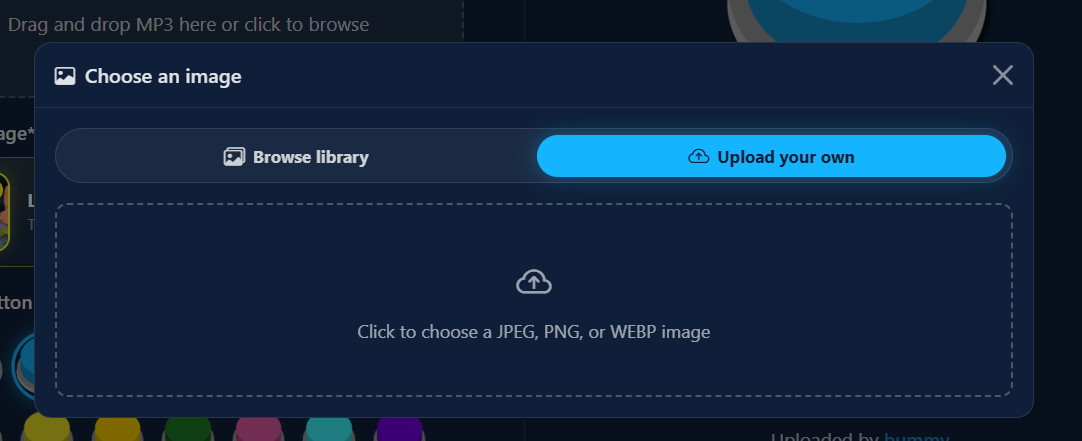
If you can't find the right match in the library, select the Upload your own tab instead. Click the upload area and choose a JPEG, PNG, or WEBP image from your device.
Choose a clear image that represents your sound and is easy to recognize at a small size.
4. Check Your Image and Finish Your Upload
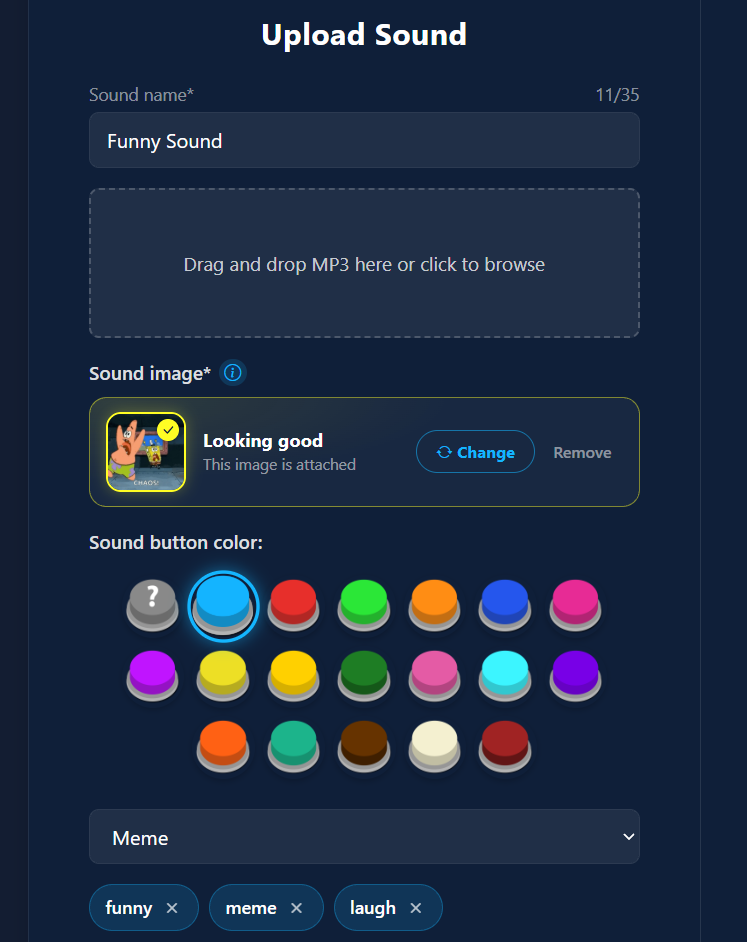
Back on the upload form, you'll see your chosen image alongside the message This image is attached. If you want to pick something else, click Change to reopen the image picker.
Finish the rest of your sound details, review your upload, and submit it when you're ready. Make sure an image is attached before submitting.
Give Your Sound a Recognizable Face
A great sound deserves a fitting image. Pick one from the library for a quick upload, or add your own to give it a personal touch. We can't wait to see what you share next on SoundboardGuys!